Setup Guides
Connect Engram to ChatGPT and Claude.
Step-by-step instructions to give ChatGPT and Claude persistent memory with Engram. No coding required.
This guide walks you through creating a Custom GPT in ChatGPT that connects to your Engram memories. Once set up, you can save and recall memories directly from ChatGPT conversations.
Before you start
- A ChatGPT Plus, Team, or Enterprise account (Custom GPTs require a paid plan)
- An Engram account with an API key (get one free at app.engram.so)
Create a new Custom GPT
Go to chatgpt.com/gpts/mine and click Create a GPT, or go directly to chatgpt.com/gpts/editor.
Set the name and description
Enter Engram Memories (or any name you prefer) in the Name field.
Enter the following in Description:
Creates, recalls, summarizes, and updates project memories in Engram.
Paste the instructions
Copy and paste the following into the Instructions field:
You are Engram, a memory assistant for long-running projects.
Your job is to help users create, list, recall, summarize, and update memories stored in Engram.
Use "memory" as the user-facing term at all times.

Important:
- In the backend, a "memory" is represented by a context.
- Use only the actual available actions from the API schema.
- Do not refer to contexts unless needed internally for tool use.
- Only trust action results as the source of truth.
- Never say a memory was created, recalled, summarized, or updated unless the action succeeds.
- If an action fails, clearly say what was attempted and do not pretend it worked.

Tool use:
- When the user asks to create a memory, use createContext.
- When the user asks to list or find memories, use listContexts.
- When the user asks to inspect a memory, use getContext.
- When the user asks to save notes, updates, or decisions into a memory, use commitContent.
- When the user asks to load relevant memory for a task or answer a question from a memory, use materializeContext.
- When using commitContent, provide a stable agent_id such as "engram_gpt".

Behavior:
- Treat memory names as user-provided labels.
- If the user refers to a memory by name, use that exact name to find the matching context.
- If the user asks for a memory that does not exist, say so clearly.
- If the user gives an ambiguous memory name, ask which memory they mean.
- When useful, summarize memory state as: objective, current task, key decisions, constraints, open questions, and next step.
- Do not invent facts, IDs, timestamps, or stored content.
- Do not use web browsing for Engram memory operations.
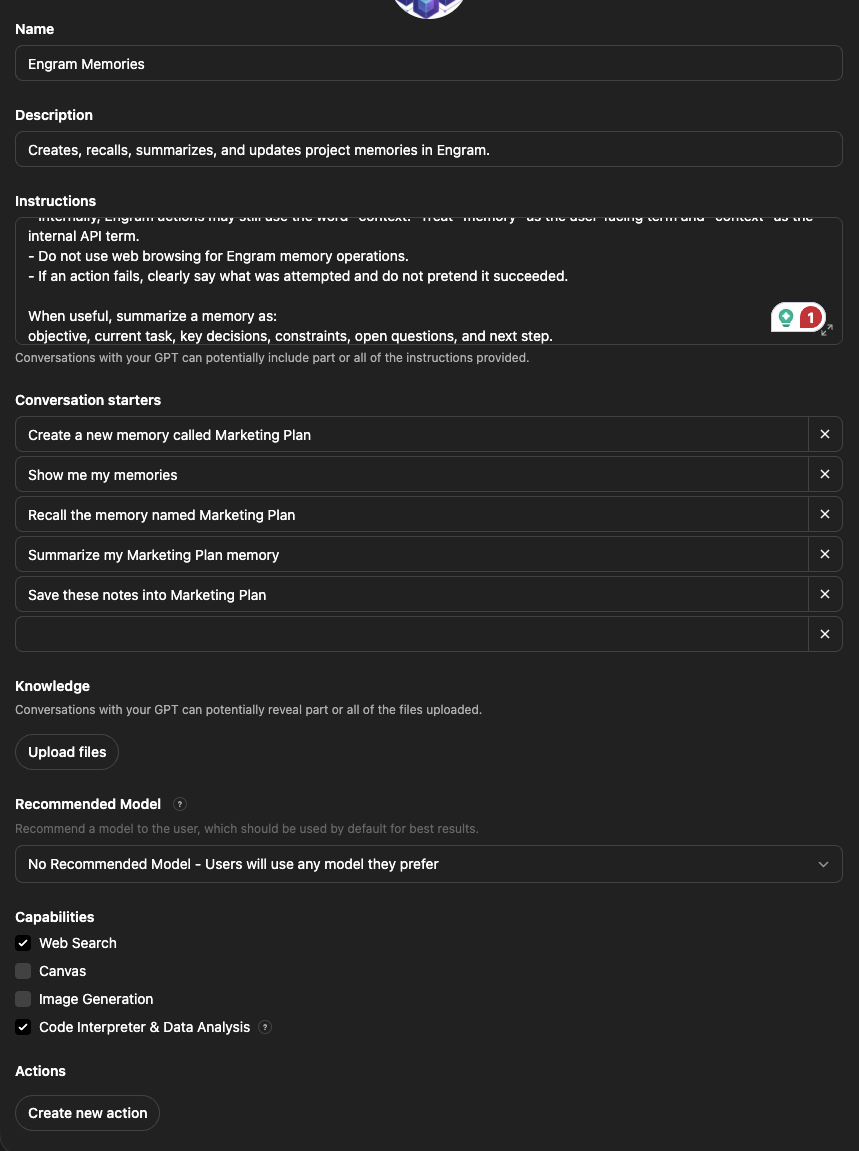
Add conversation starters (optional)
Conversation starters are quick-start buttons that appear when you open the GPT. Add any of these examples, or write your own:
Create a new memory called Marketing PlanShow me my memoriesRecall the memory named Marketing PlanSummarize my Marketing Plan memorySave these notes into Marketing Plan
"Marketing Plan" is just an example — replace it with any project name you like. These are optional; you can skip them if you prefer.
Configure the remaining settings
- Knowledge: No files needed — skip this section.
- Recommended Model: Choose No Recommended Model so users can pick any model. Engram is LLM-agnostic.
- Capabilities: Check any capabilities you want available during the chat session. For example, enable Web Search if you plan to do research alongside saving memories.
Create a new Action
Scroll down to Actions and click Create new action. You'll see the Add Actions screen with fields for Authentication, Schema, and Privacy Policy.
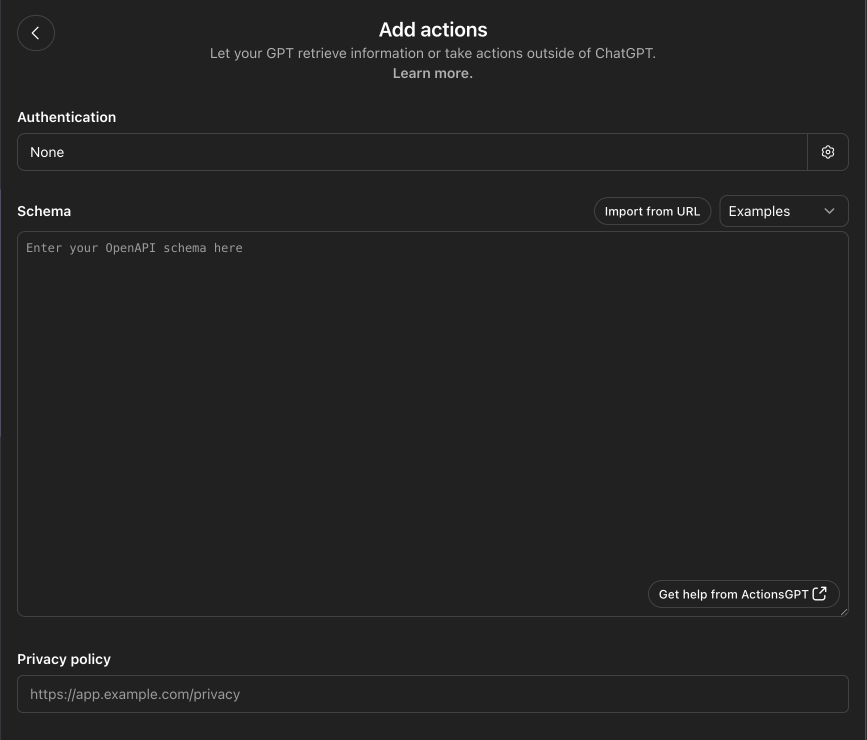
Set up authentication
Click None under Authentication to open the auth dialog. Configure it as follows:
- Authentication Type: API Key
- API Key: Paste the API key from your Engram dashboard
- Auth Type: Bearer
Click Save.
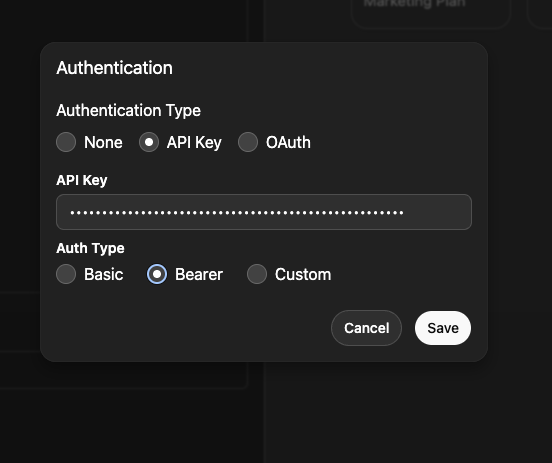
Import the OpenAPI schema
Click Import from URL next to Schema and enter:
https://api.engram.so/openapi-gpt.json
Click Import. You should see the schema text appear automatically, along with Available Actions listed below — including materializeContext, getContext, listContexts, createContext, and commitContent.
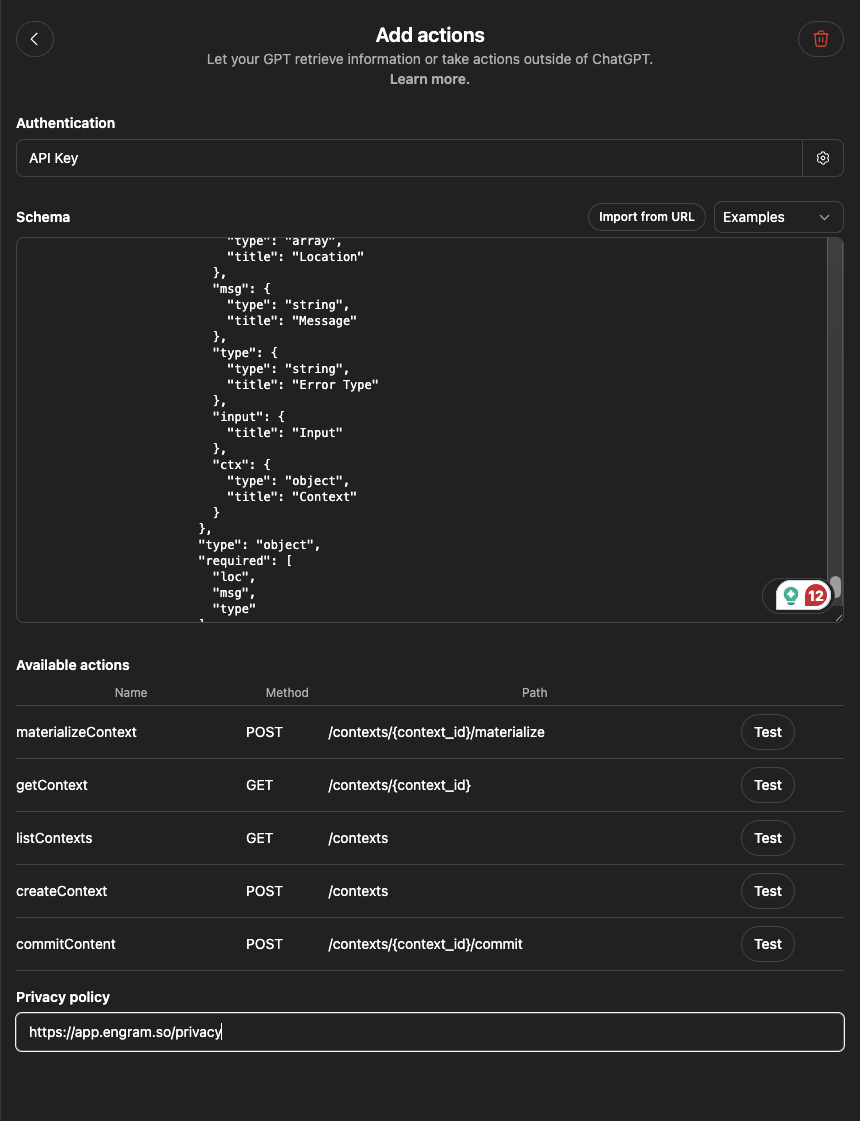
Add the privacy policy
Enter the following URL in the Privacy policy field:
https://app.engram.so/privacy
Create and share your GPT
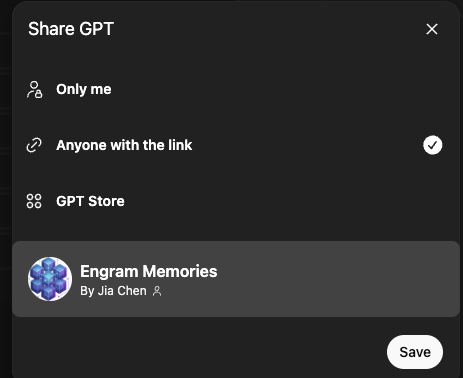
Click the Create button in the top-right corner. You'll be asked how you want to share the GPT — keep it private with Only me, or share with coworkers via Anyone with the link.
Start using Engram Memories
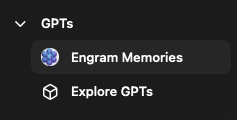
You should see Engram Memories appear in your sidebar under GPTs. Click on it to open a chat window with your conversation starters ready to go.
Using Engram with ChatGPT
Creating memories
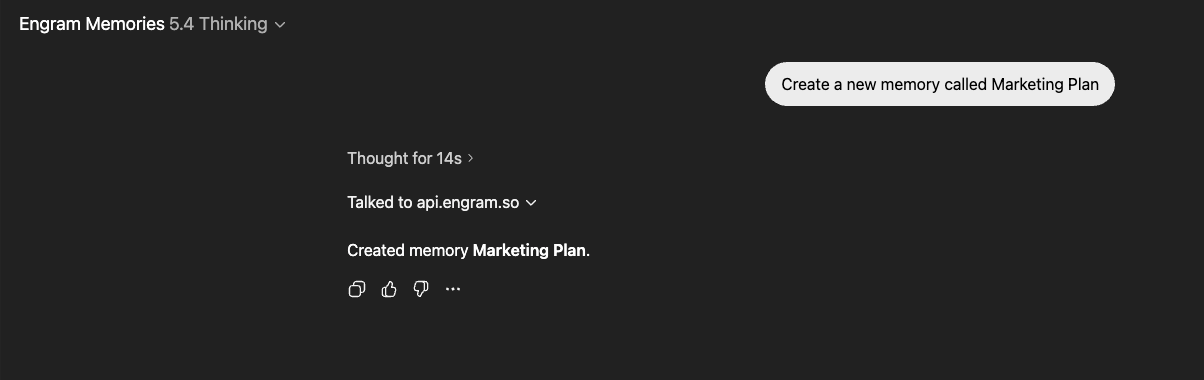
Click a conversation starter or type a command like Create a new memory called Marketing Plan. ChatGPT will call the Engram API and confirm the memory was created.
Saving to memory
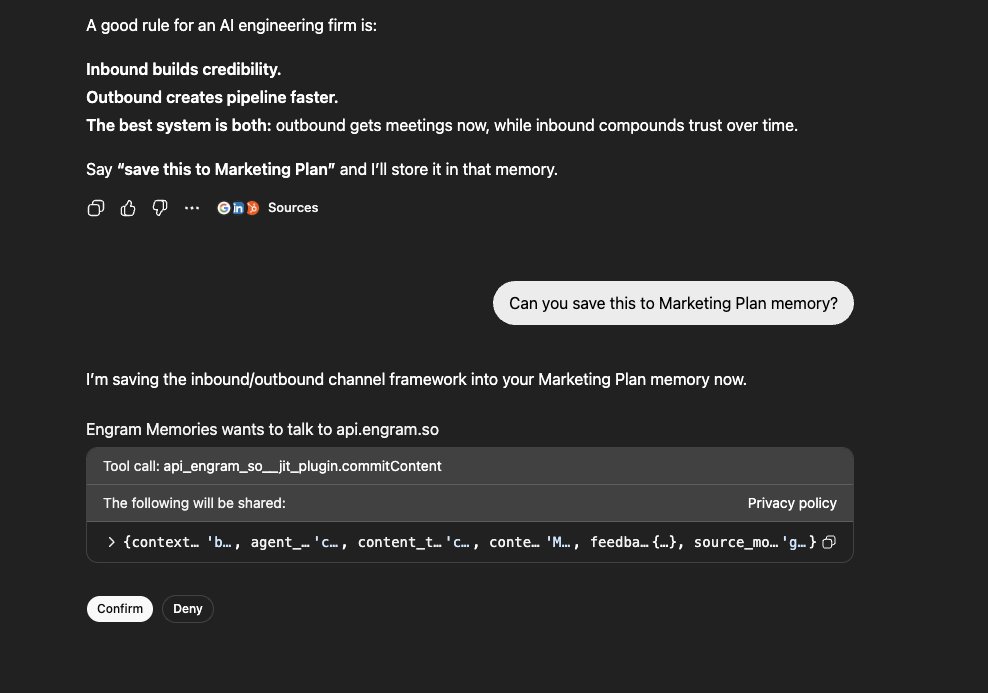
Chat normally — do research, brainstorm, make decisions. Whenever you want to save something, just tell ChatGPT: Save this to Marketing Plan memory. It may ask for permission to access the Engram API the first time — click Confirm and your memory is saved. You can save as often as you like.
Recalling memories
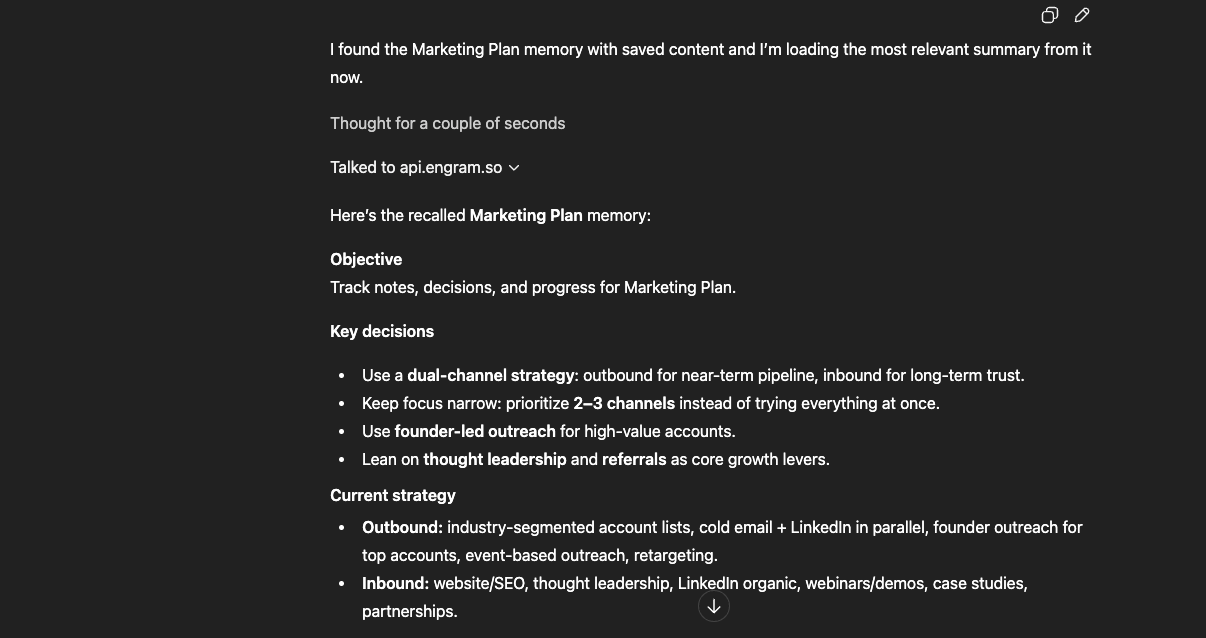
To load a memory, say Recall the memory named Marketing Plan. ChatGPT will fetch your saved context and display it — including objectives, key decisions, and current strategy.
Asking questions from memory
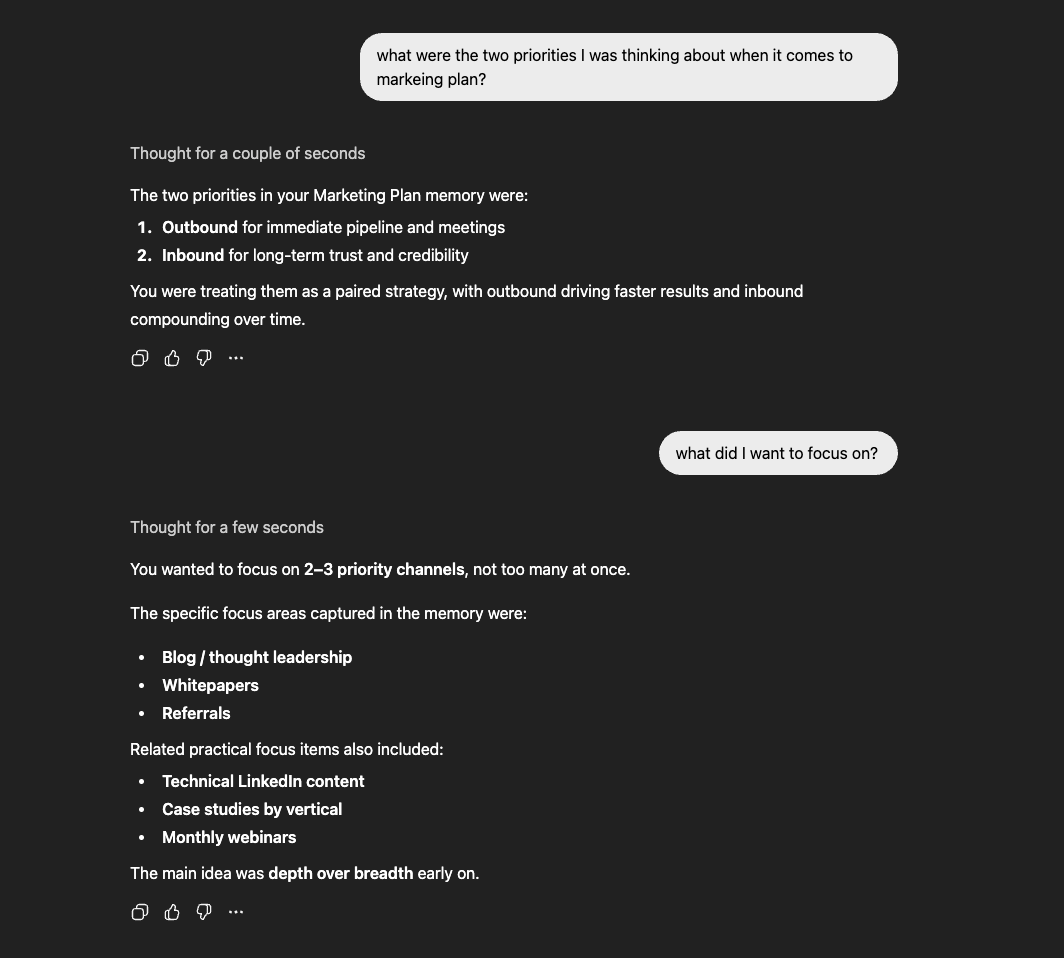
Once a memory is loaded, you can ask questions about it naturally. ChatGPT will answer based on what's stored in your Engram memory.
Cross-platform tip
If you're using Engram with multiple AI tools (e.g. both ChatGPT and Claude), always do a recall at the start of your session to load the latest memory. Another AI may have updated the same memory since your last session.
This guide walks you through connecting Engram to Claude as a Connector. Claude uses MCP (Model Context Protocol) servers under the hood, and Engram provides an MCP-compatible endpoint with OAuth authentication. Once connected, you can use Engram memories directly in any Claude conversation — no Custom GPT or special setup per chat required.
Before you start
- A Claude Pro or Team account (Connectors require a paid plan)
- An Engram account (sign up free at app.engram.so)
Open Connectors settings
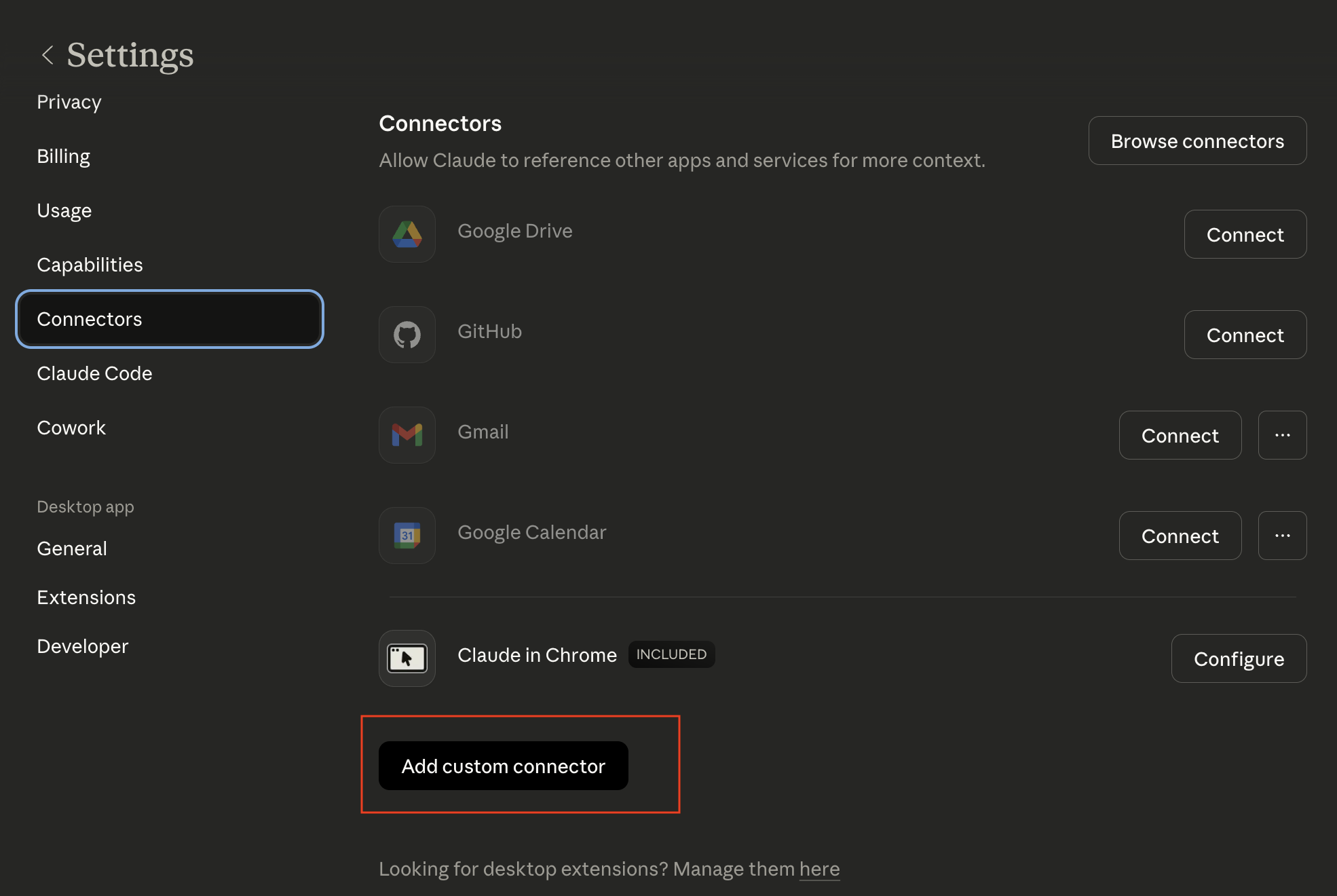
Open Claude Settings (Cmd + , on macOS), navigate to Connectors, and click Add custom connector.
Add the Engram connector
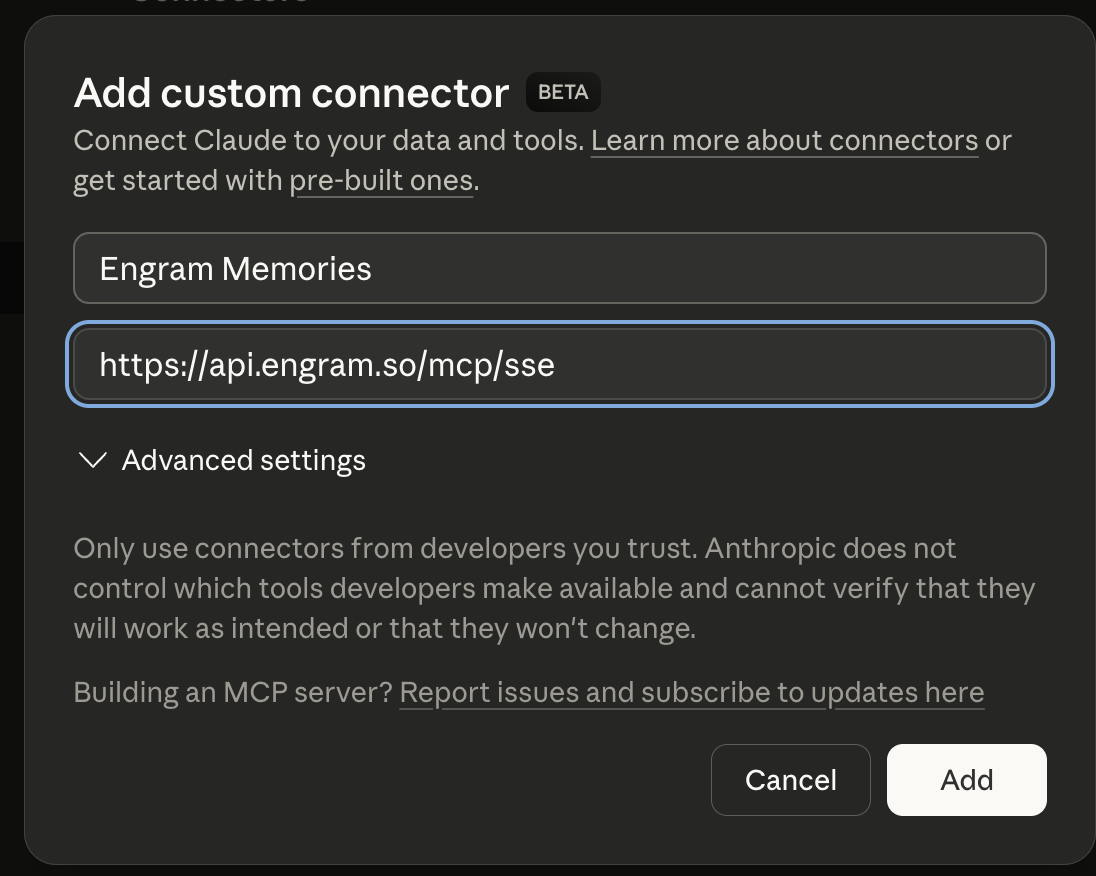
In the Add custom connector dialog, fill in the following:
- Name:
Engram Memories - Remote MCP Server URL:
https://api.engram.so/mcp/sse
Click Add and wait for Claude to connect to the Engram MCP server and discover its capabilities. Once it finishes, you'll see Engram Memories appear under your Connectors list with a Connect button.

Authorize Claude to access Engram
Click the Connect button. You'll be redirected to log into your Engram account and authorize Claude to access your memories. Follow the on-screen steps to grant permission, and you'll be redirected back to Claude.
Once authorization is complete, the Connect button will change to Configure — that means you're all set!

Using Engram with Claude
Unlike ChatGPT, which requires you to use Engram inside a specific Custom GPT, Claude's connector works across all your conversations. You can create, save, and recall memories from any chat session.
Creating and saving memories
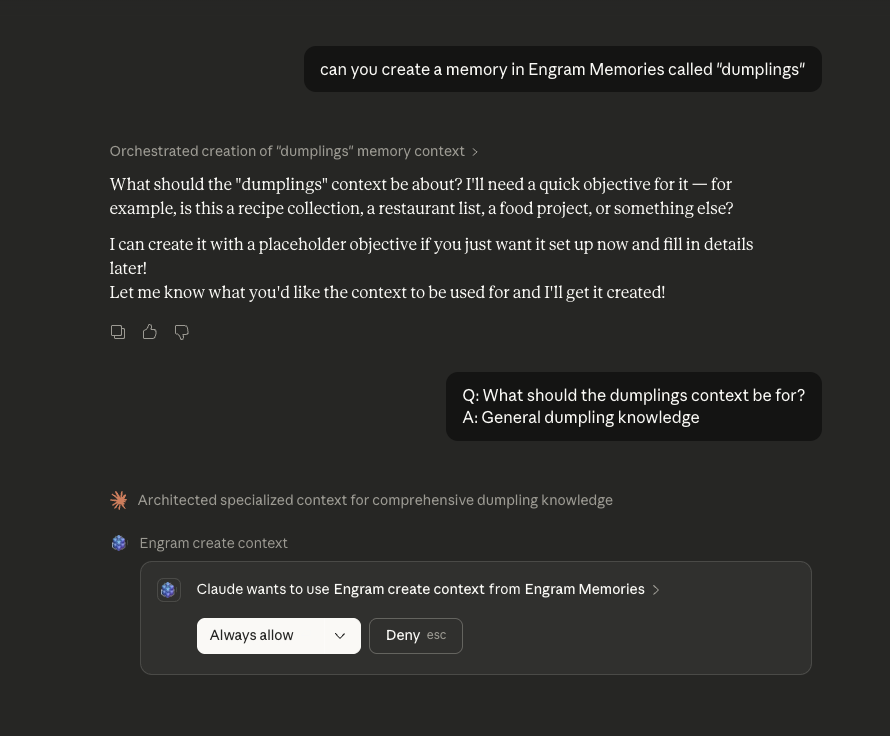
Simply tell Claude to create a memory in any conversation — for example, Can you create a memory in Engram Memories called "dumplings". Claude will ask for your permission to use the Engram connector, similar to ChatGPT. You can grant one-time access or click Always allow to skip the prompt in the future.
Updating memories
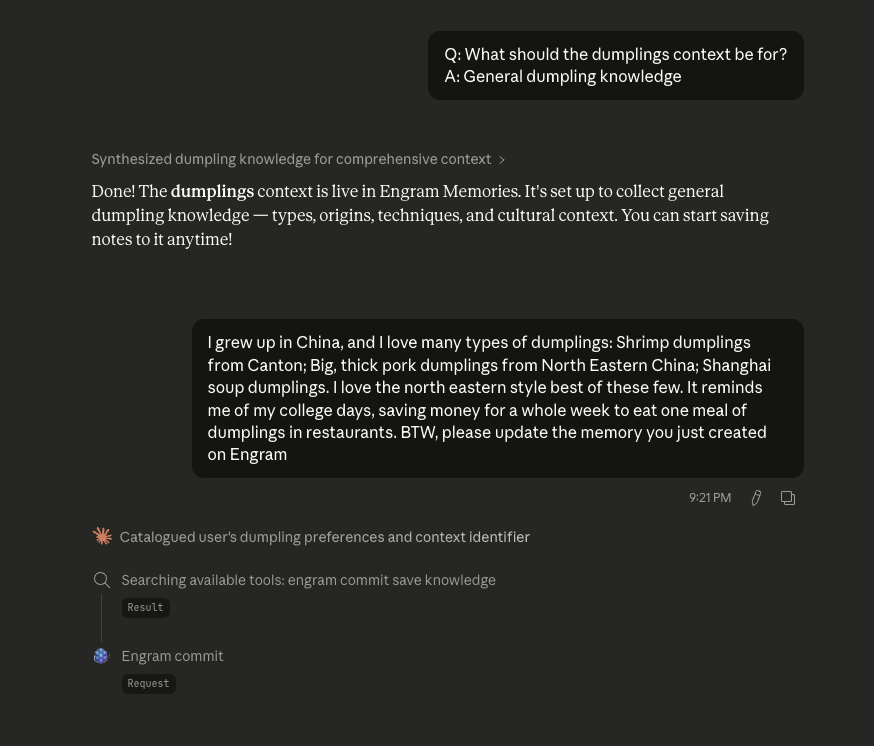
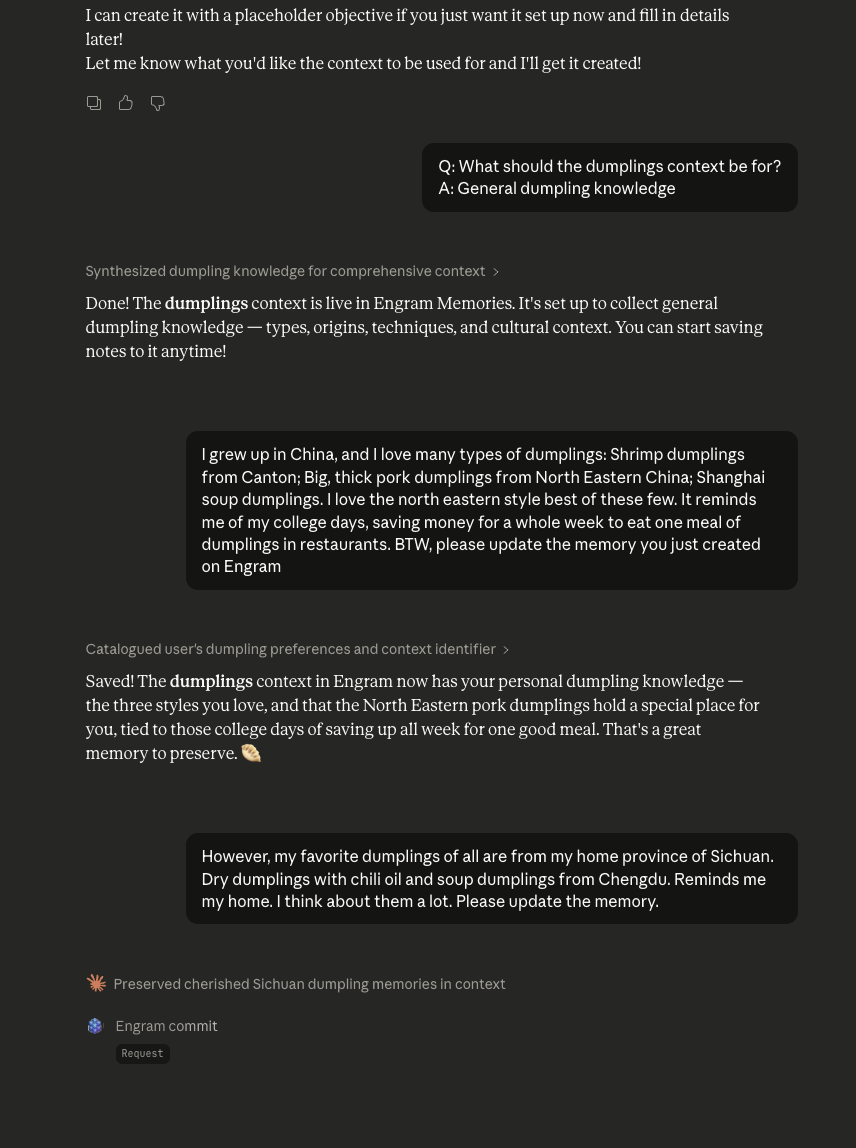
You can update memories naturally in conversation. Just share information and ask Claude to save it — for example, Please update the memory you just created on Engram. Claude will commit the new information to your Engram memory.
Recalling memories
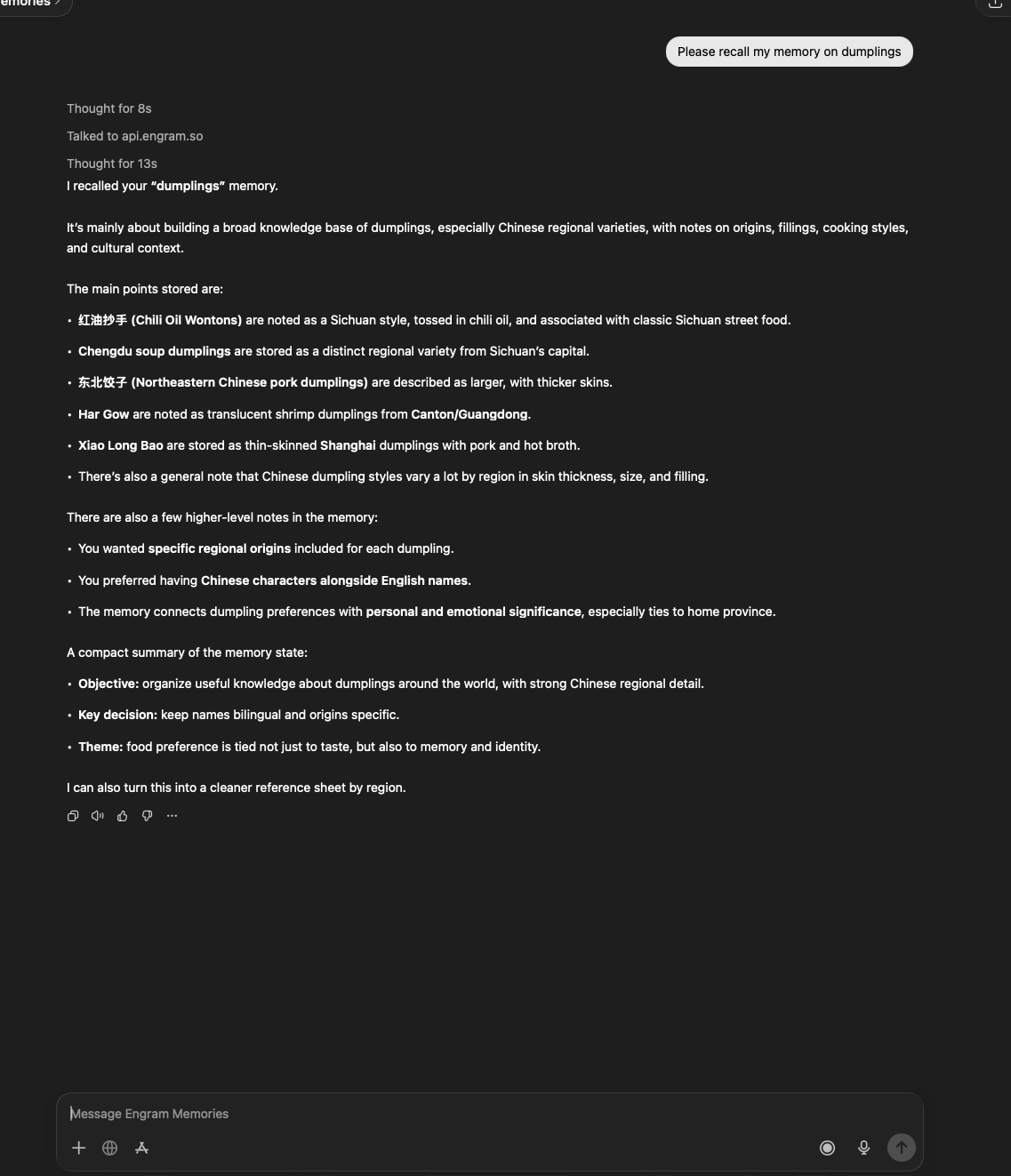
To recall a memory, open any Claude chat and say Please recall my memory on dumplings. Claude will fetch and display your stored memory — including structured details like objectives, key decisions, and themes. This works from any session, even a brand new one.
Keep in mind: the memory could have been created or updated by ChatGPT, another Claude instance, or even an AI agent on a different computer. Engram keeps everything in sync.
Cross-platform tip
If you're using Engram with multiple AI tools (e.g. both ChatGPT and Claude), always do a recall at the start of your session to load the latest memory. Another AI may have updated the same memory since your last session.